

Account Access Instructions
Granting JH Access to Tracking, Social, and Ads Accounts
Facebook for Business
1. To grant JH access to manage your Facebook Page, first log into Facebook and navigate to your Facebook page.
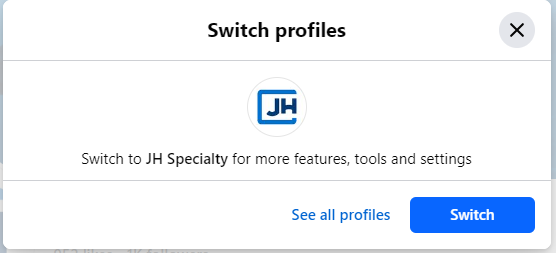
2. Ensure you are logged in as the page by clicking the 'Switch' button (outlined in orange)

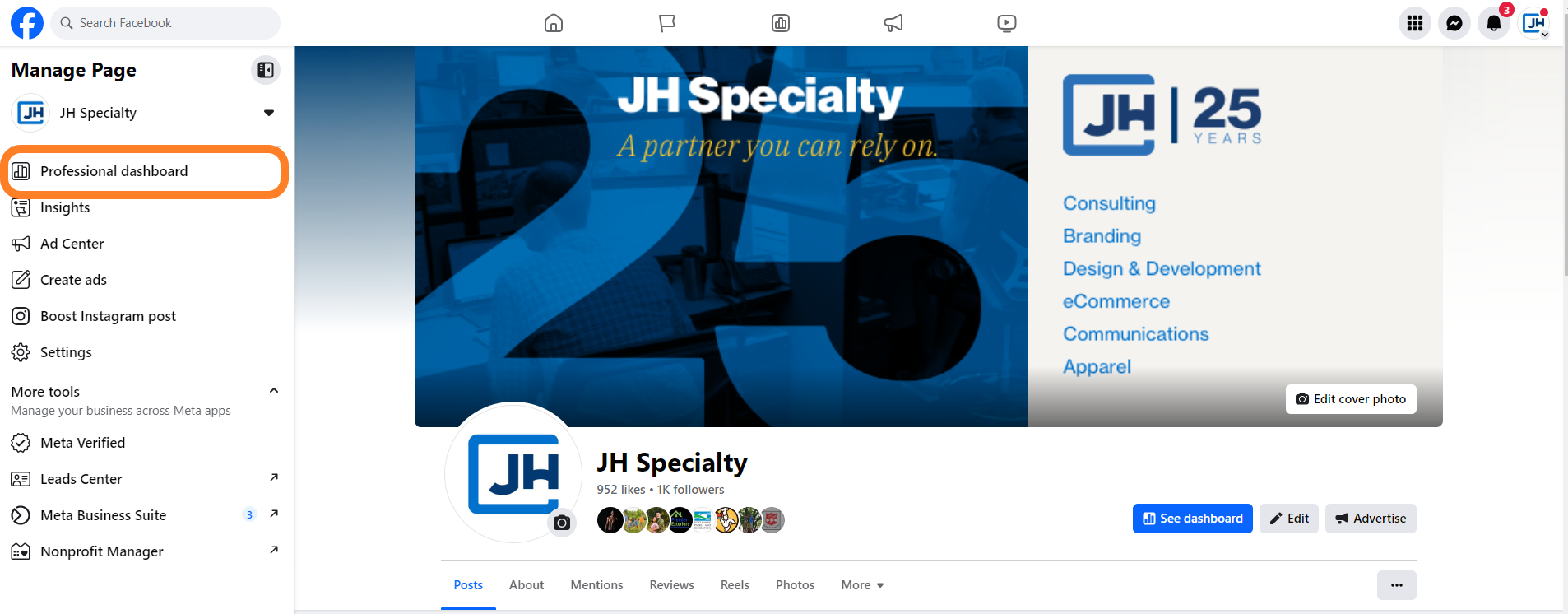
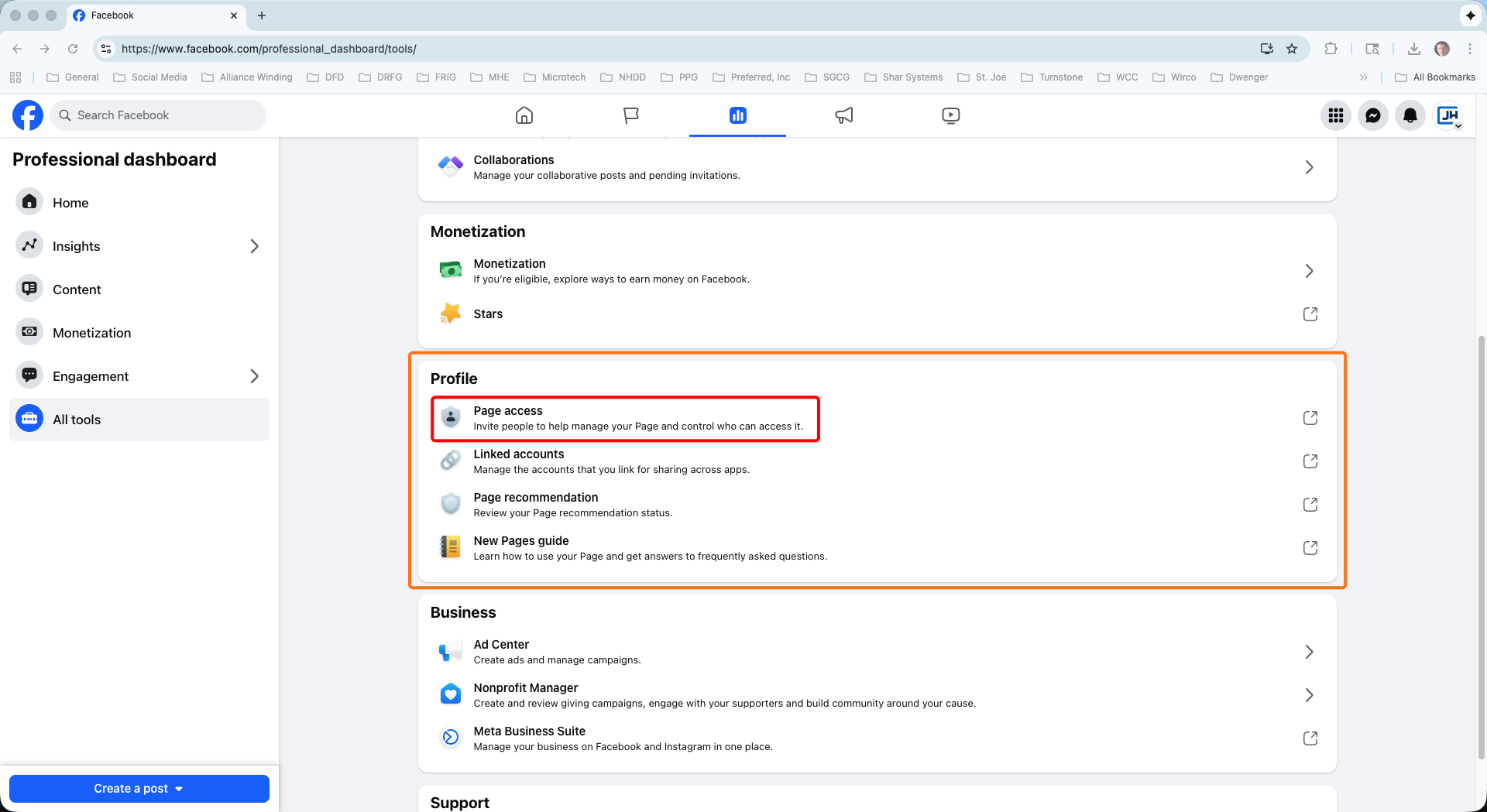
3. Now that you are logged in as the page profile, select 'Professional Dashboard' from the menu
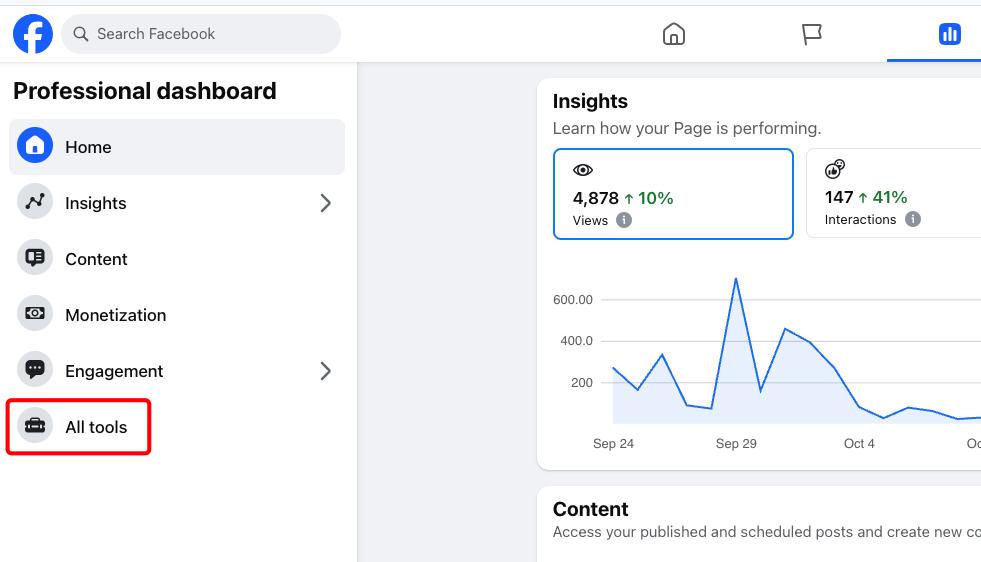
4. In the left hand menu, select 'All tools'
5. Scroll to the profile section, and click "Page access"
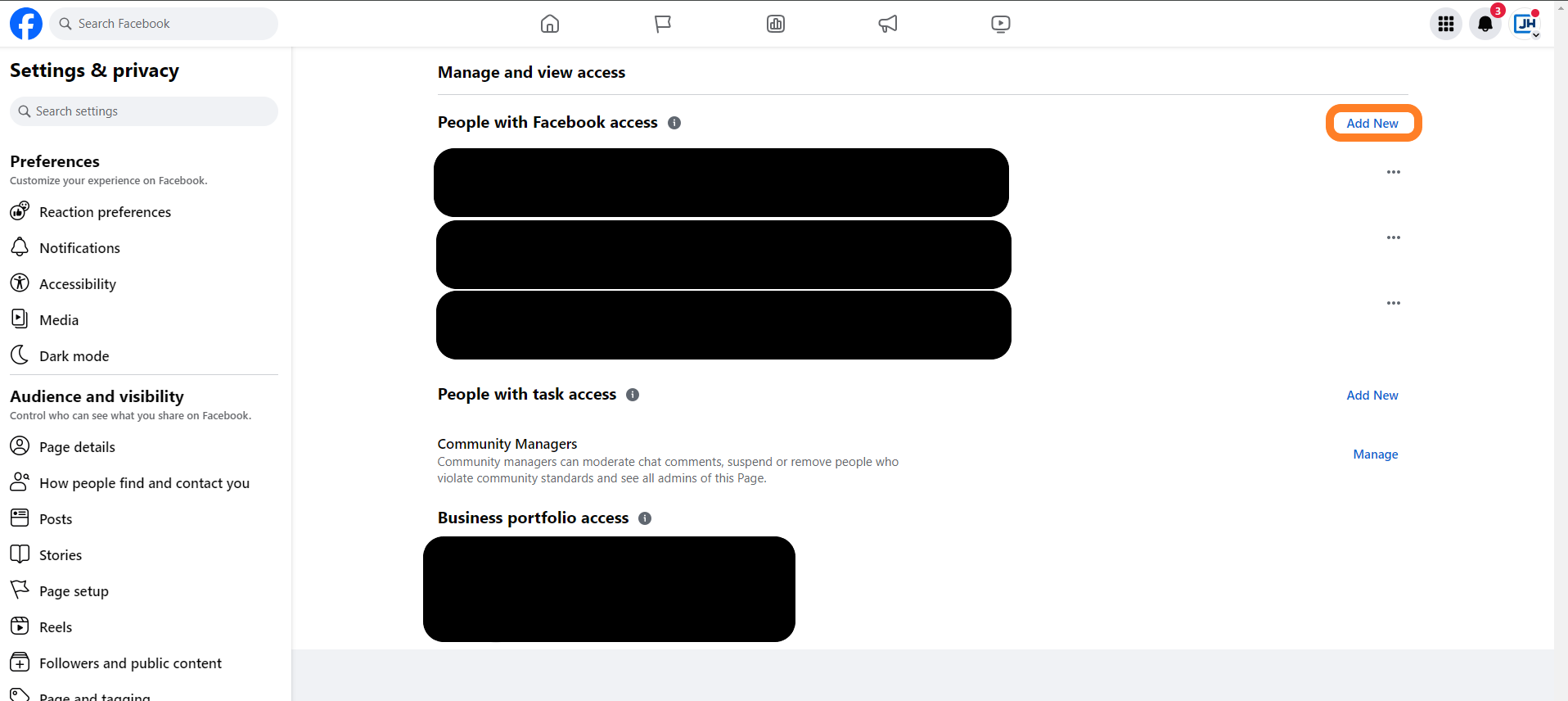
6. On Page Access page in the "People with Facebook access" section, click 'Add New'
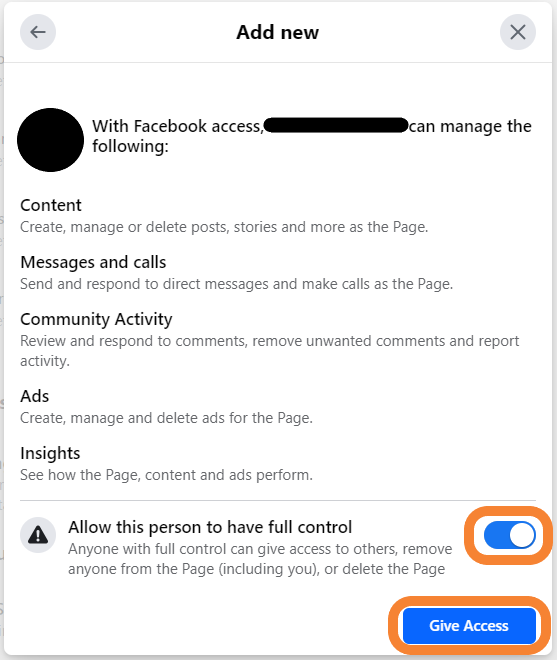
7. Add "Harrison Diedrich" as a Page Admin by typing in "https://www.facebook.com/harrison.diedrich.7/" and selecting "Harrison Diedrich" from the menu.
Enable Full Control and click "Give Access"
Please provide your project manager with the username and password for your business profile.
Meta Business Manager
1. Log in to your Meta Business Manager account.
2. Navigate to the "Partner" tab, click the "Add" button, and select "Give a partner Access to your assets"
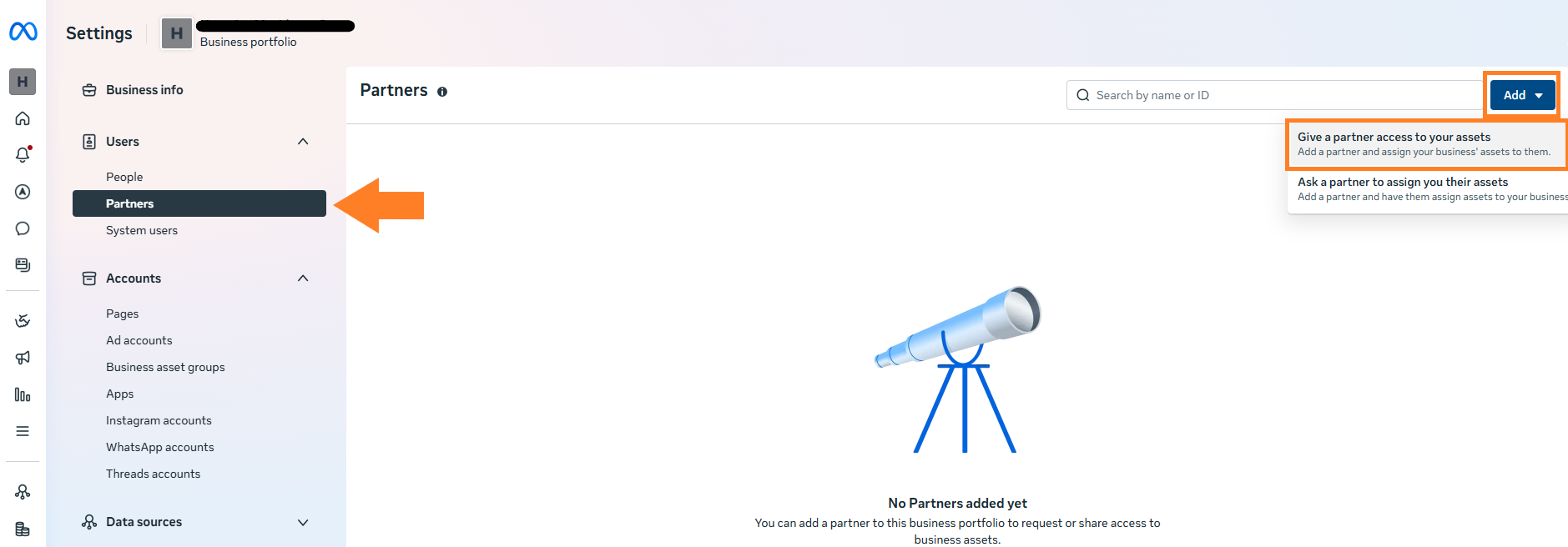
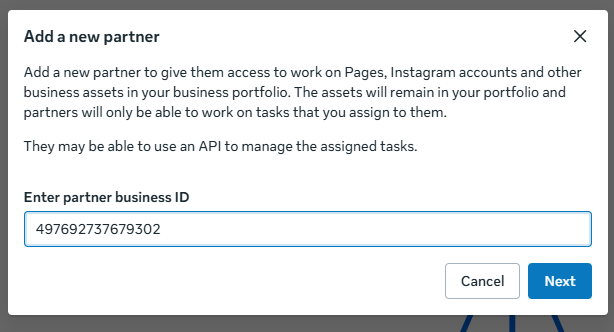
3. In the 'Add a New Partner' popup, enter the ID: 497692737679302 and click "Next."
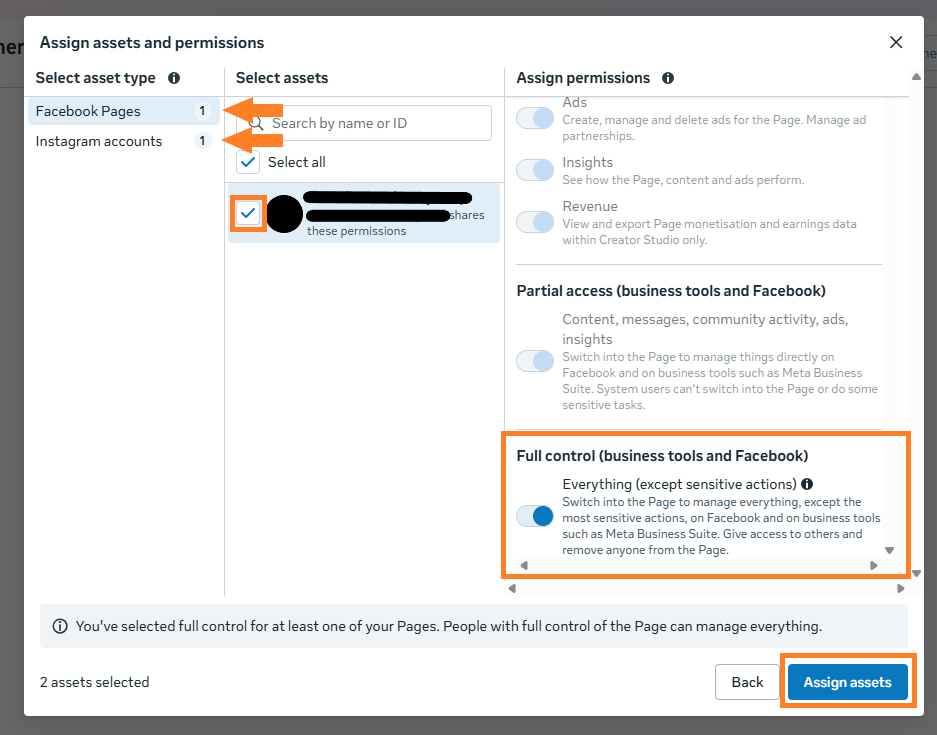
4. For each asset type, select the asset that you would like to grant us access to. In the 'Assign Permissions' tab, scroll down and enable "Full Control (business tools and Facebook)" Repeat the process for each asset.
*If the Full Control option is not available, manually toggle all applicable permissions
Once your finished, click "Assign Assets".
6. Once all assets and permission levels have been selected, click the blue "Invite" button.
LinkedIn Page
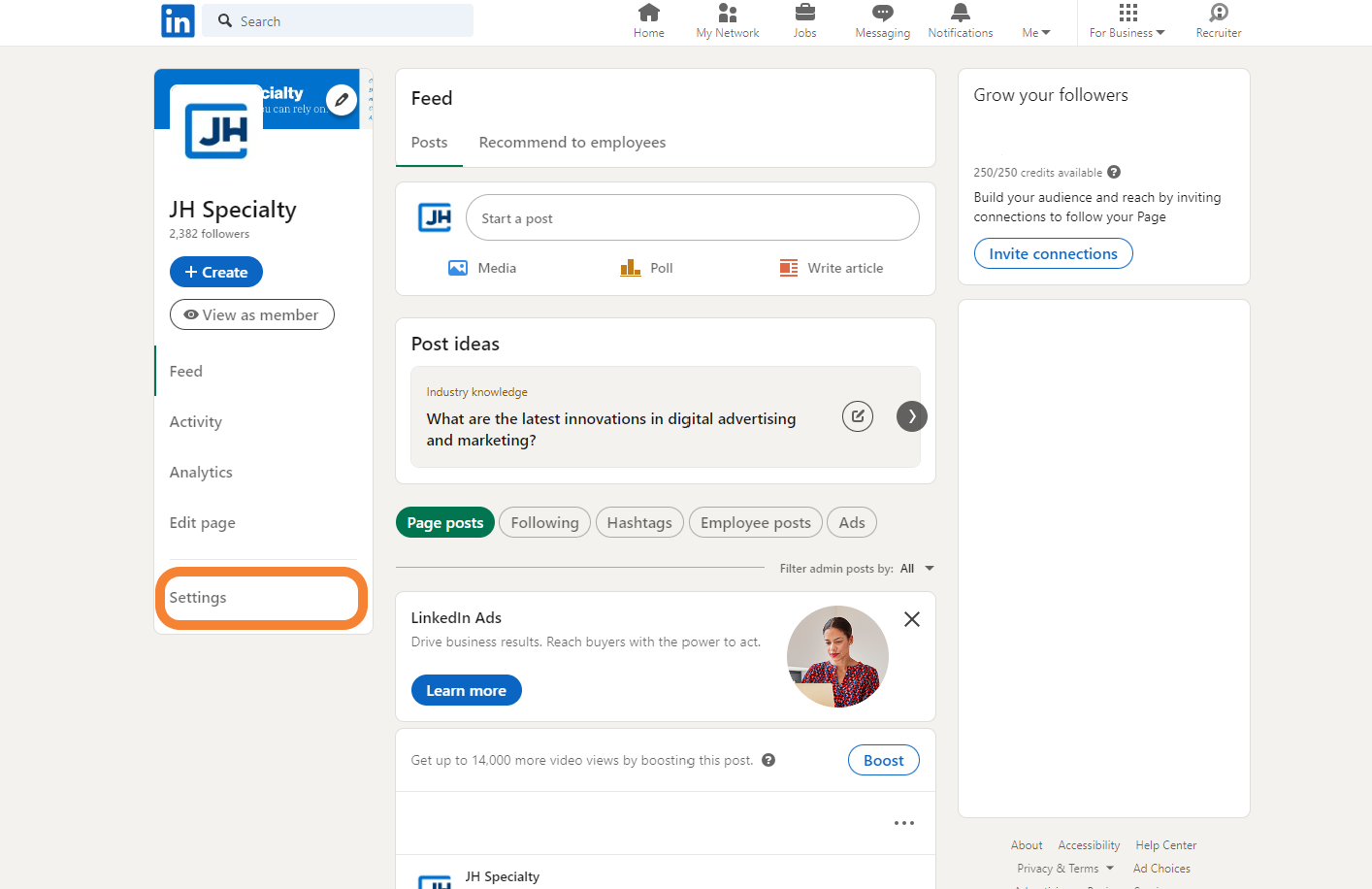
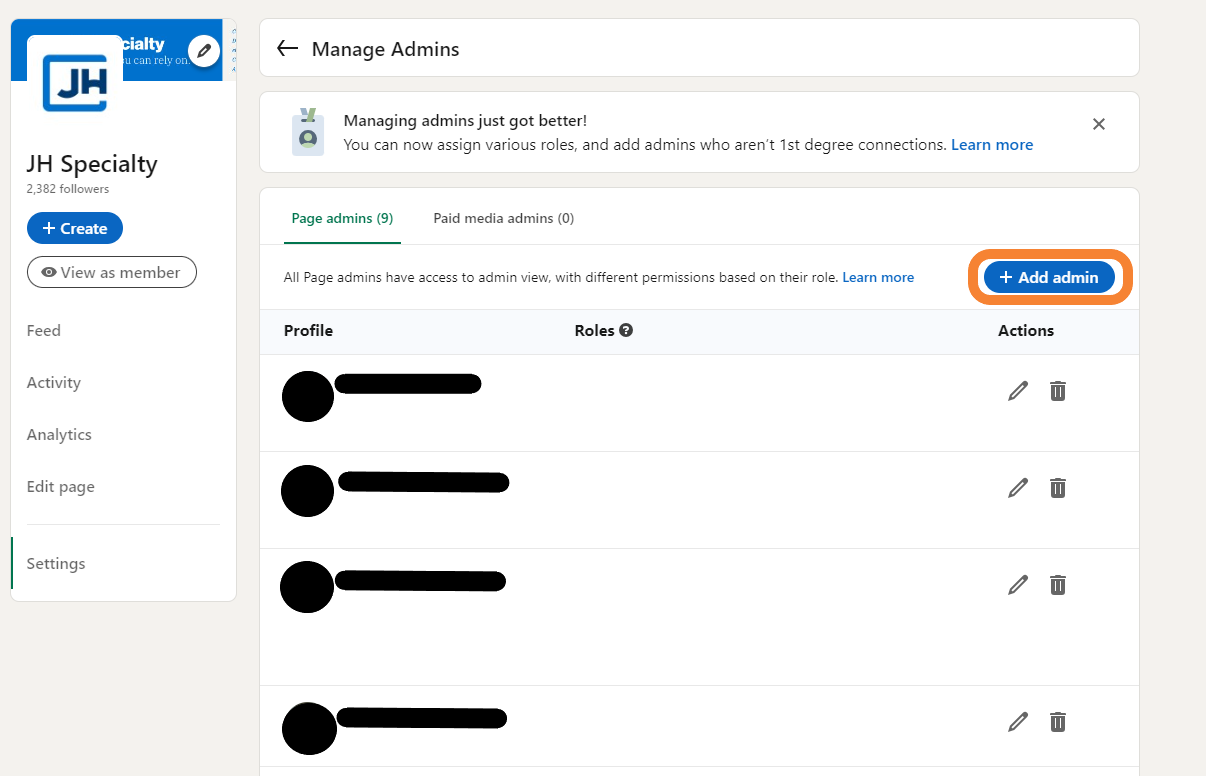
1. Navigate to your LinkedIn Page and click 'Settings'
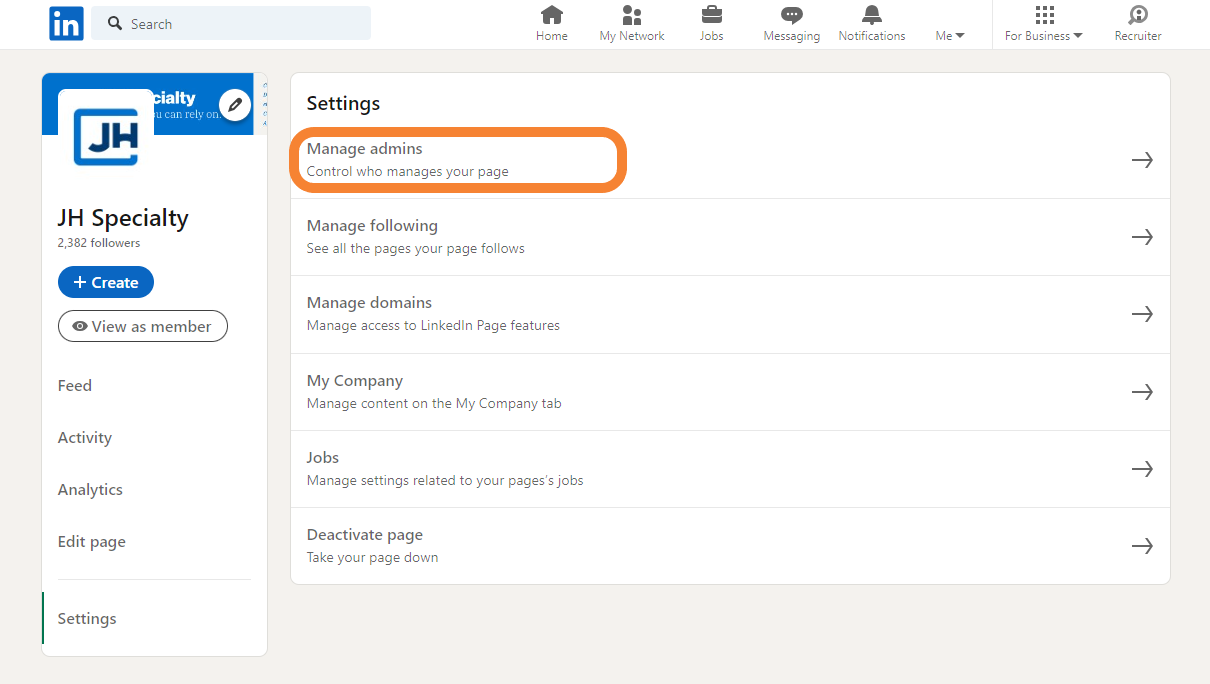
2. Click 'Manage Admins'
3. Click 'Add Admin'
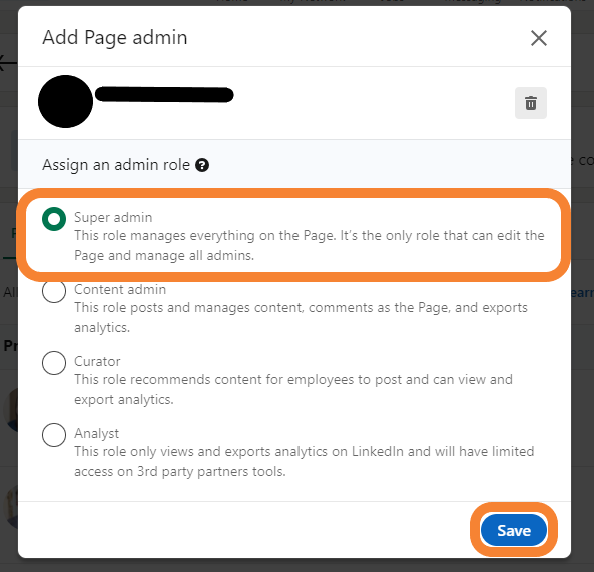
4. Search for and select your Project Manager. Select the 'Super Admin' role, then click 'Save'
YouTube
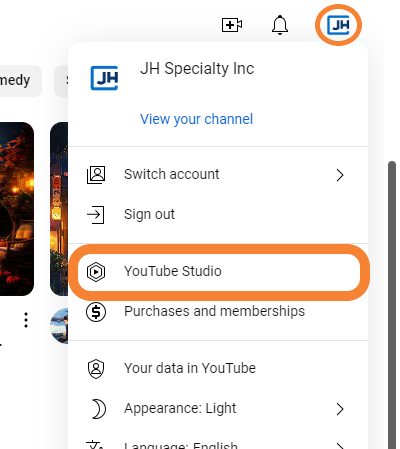
1. Log into YouTube with your YouTube Channel. Click on your Channel icon and select 'YouTube Studio' from the drop down.
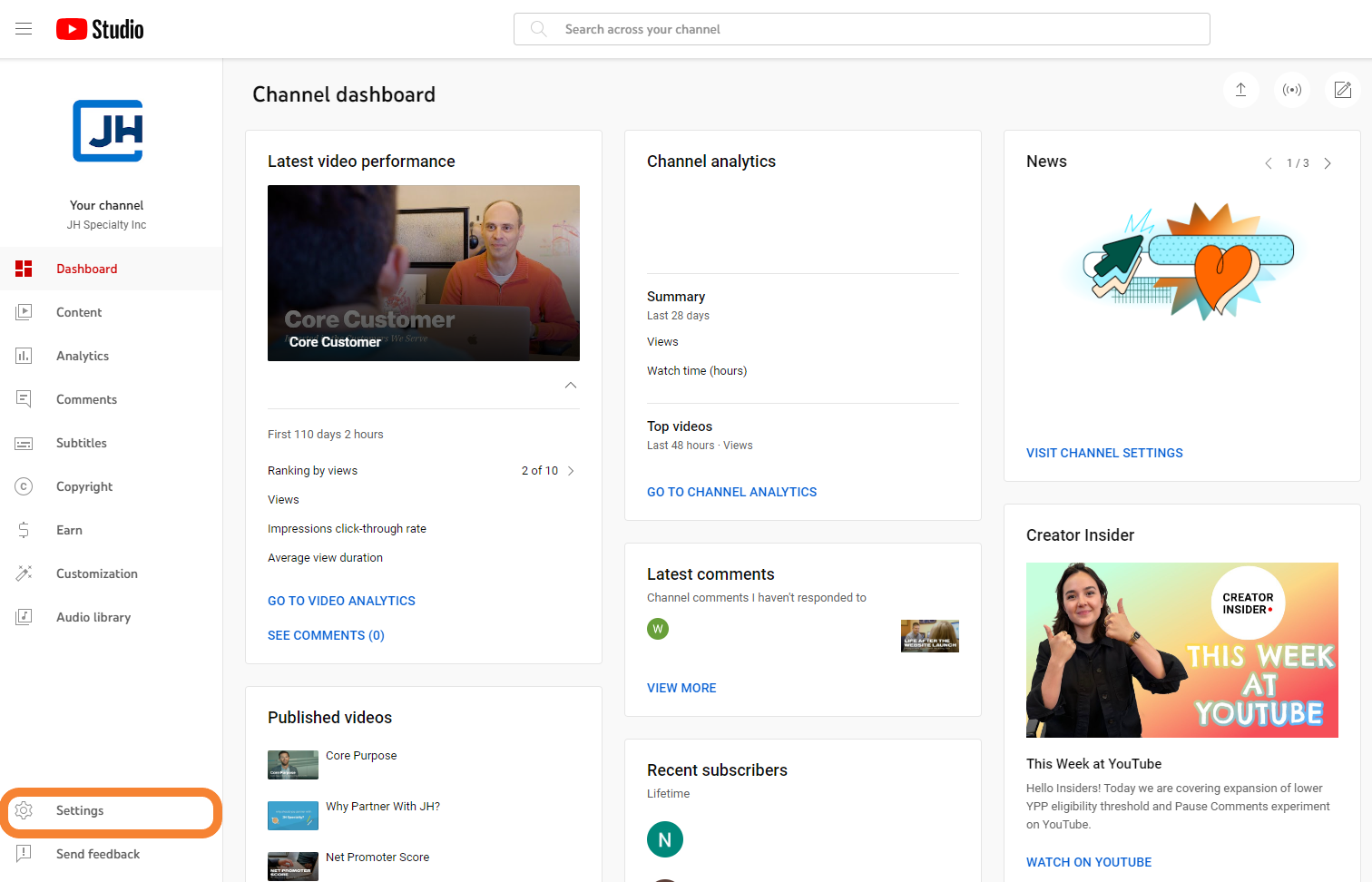
2. From your Channel Dashboard, click 'Settings'
3. Click the 'Permissions' tab and select 'Invite'
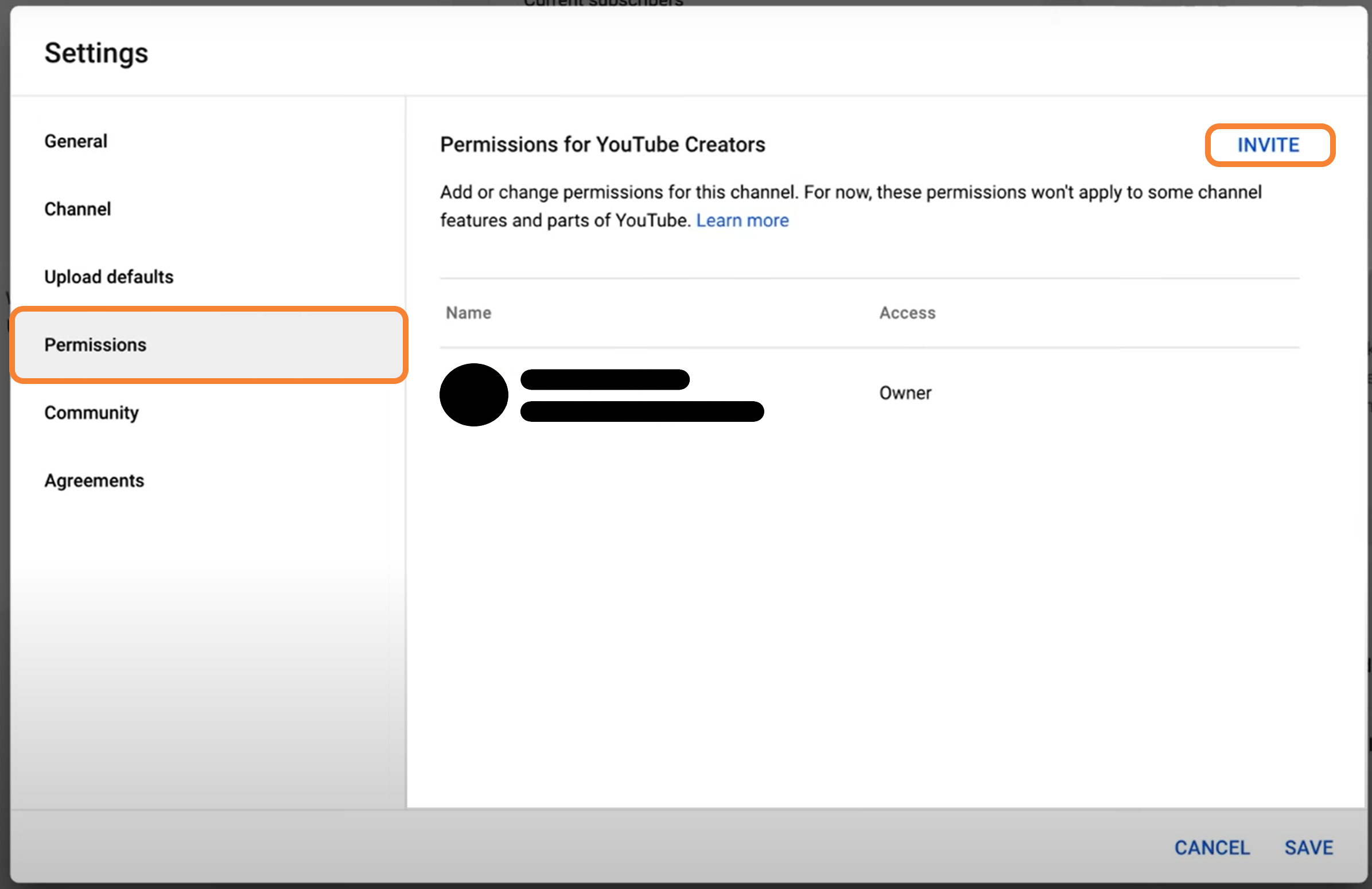
4. Add JH as a Manager of the Channel by typing 'jhspecialty.sem@gmail.com' in the email field and selecting 'Manager' from the drop down.
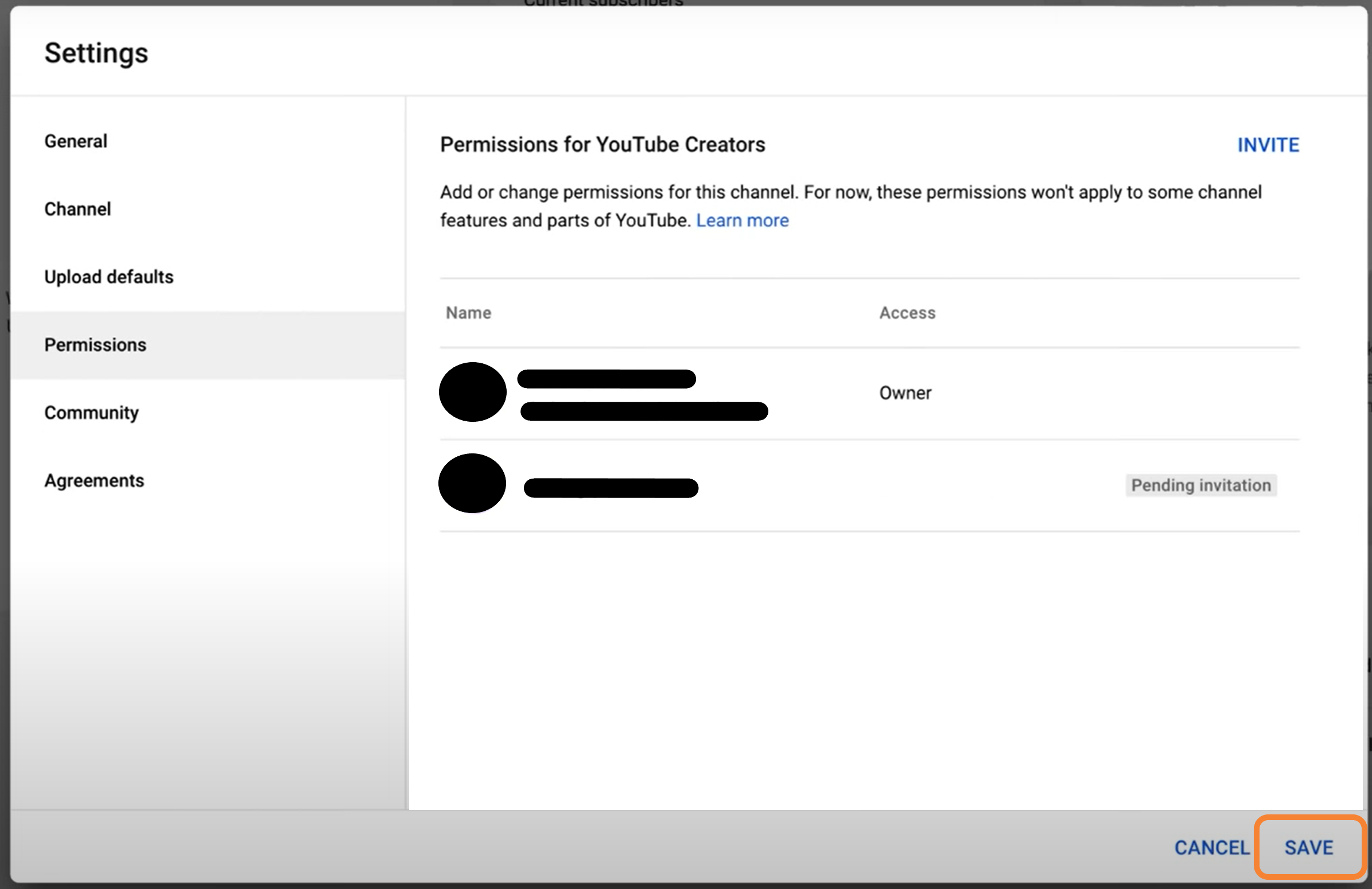
5. Click 'Save'
Google Ads
1. Log in to your Google Ads account
2. Hover over "Admin" and select "Access and security."
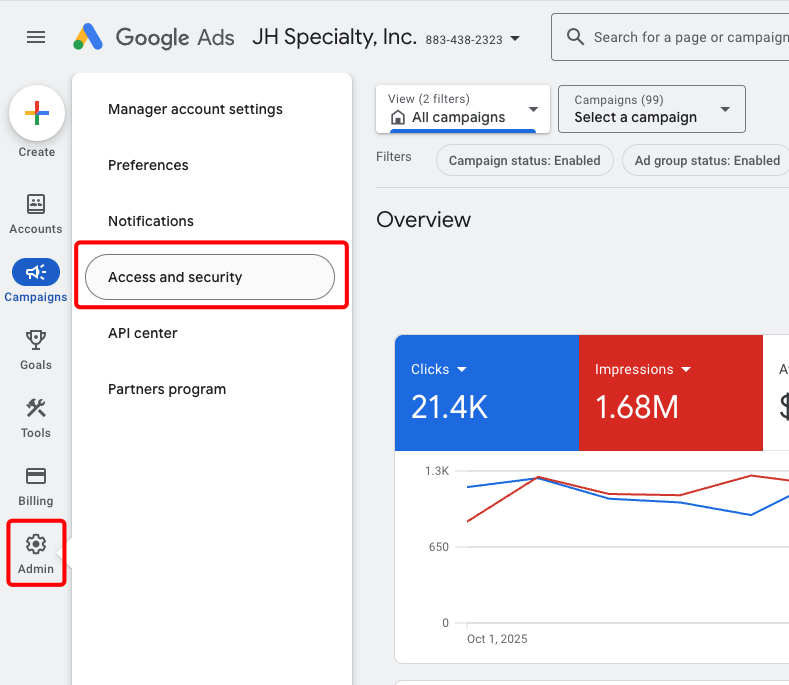
3. Click the plus (+) sign.
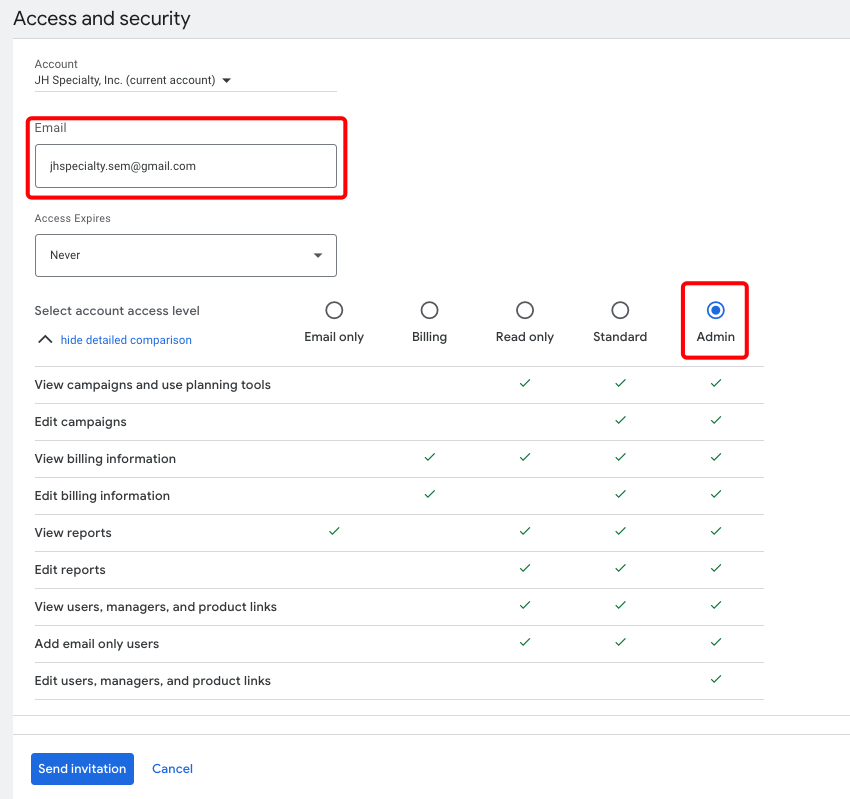
4. Type "jhspecialty.sem@gmail.com" into the email text field, select "Admin," and click "Send invitation."
Google Analytics
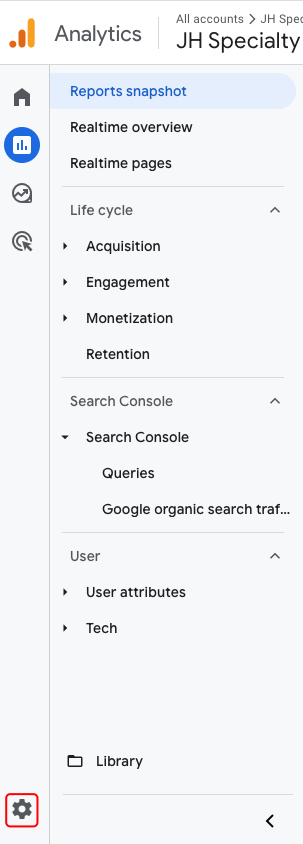
1. Log in to Google Analytics and click the gear icon in the bottom-left corner.
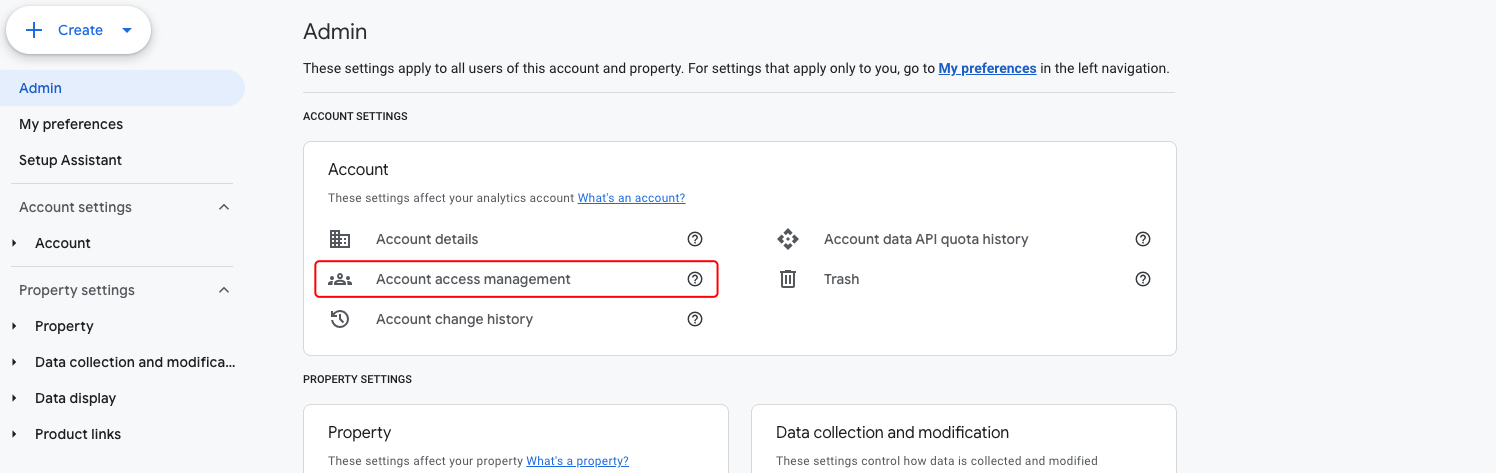
2. Under the Admin section, select "Account access management."
3. In the window that opens, click the blue plus (+) icon and choose "Add users."

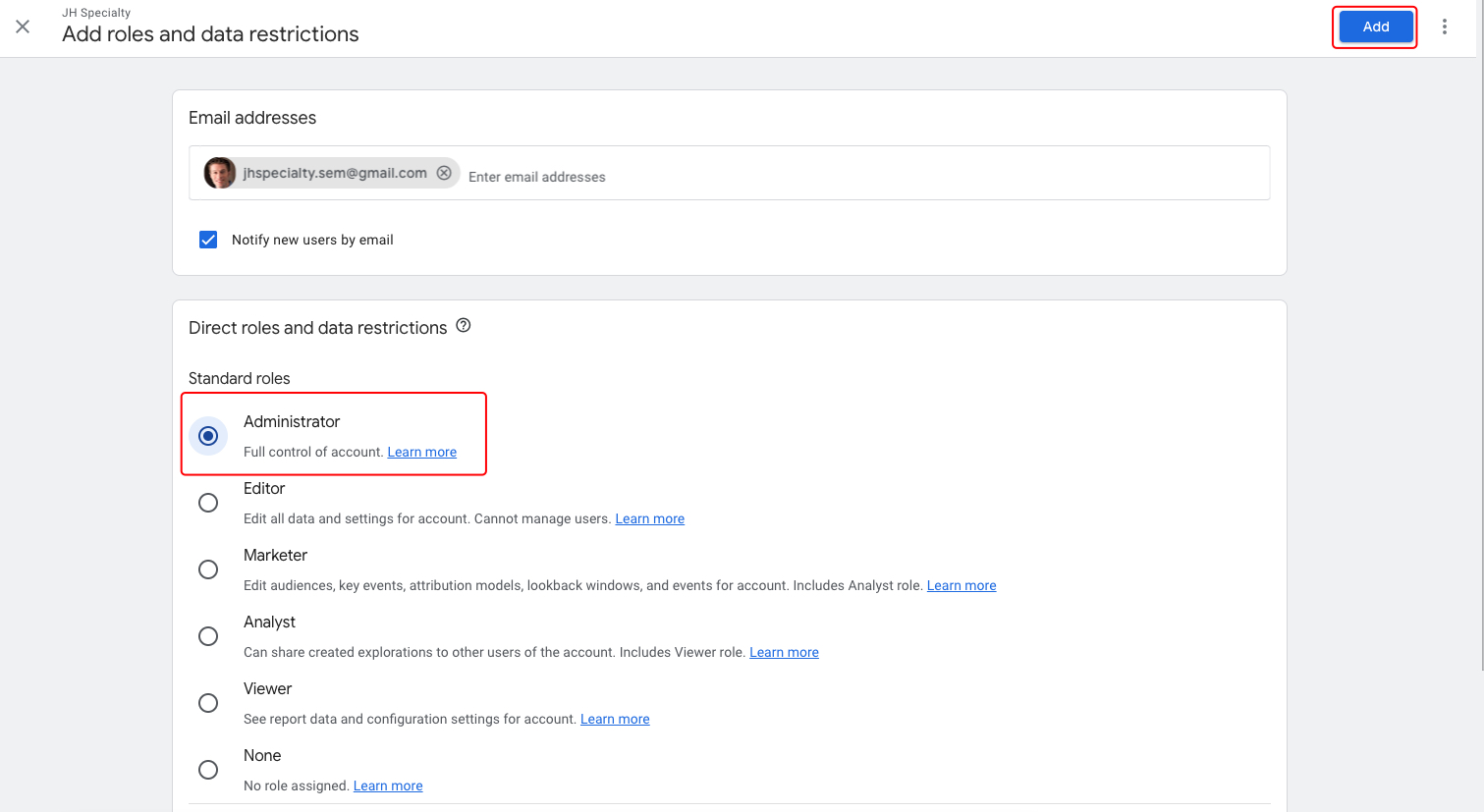
4. Enter jhspecialty.sem@gmail.com, select the role as "Administrator", and click "Add."
Google Search Console
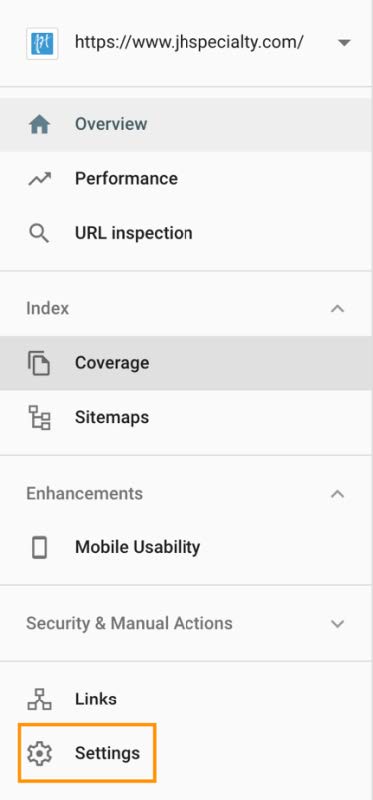
1. Log into Google Search Console, select the property to which you wish to grant JH access. From the main menu on the left, select "Settings"
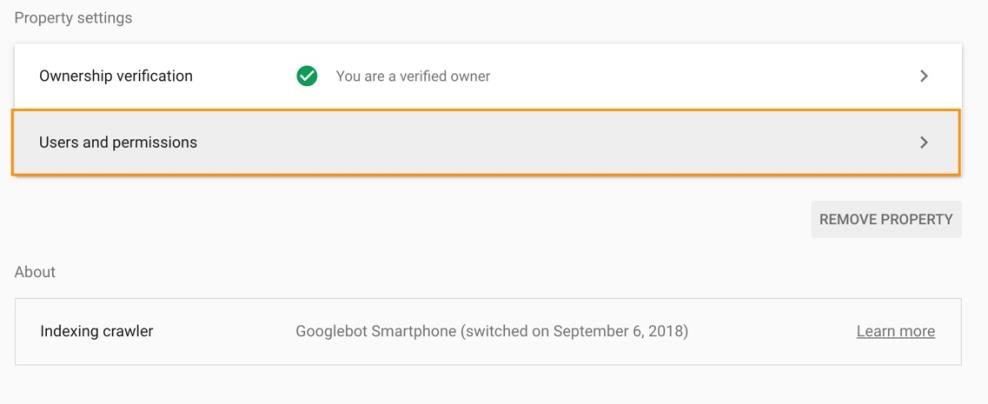
2. From the settings menu, select "Users and Permissions"
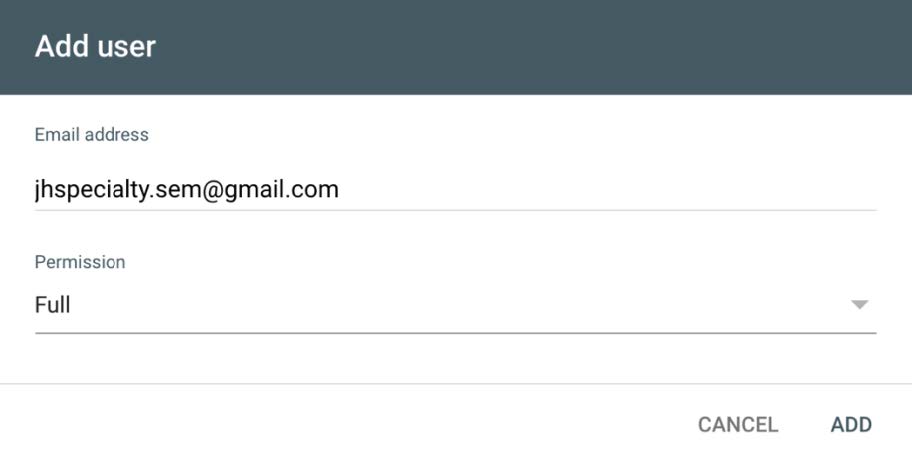
3. Once you've clicked "Add User", type "jhspecialty.sem@gmail.com" and make sure "Full" is selected under permission. Click "Add".
Google Business Profile
1. To grant JH access to manage your Google Business Profile, first sign in to Google and click on “See your Profile.”

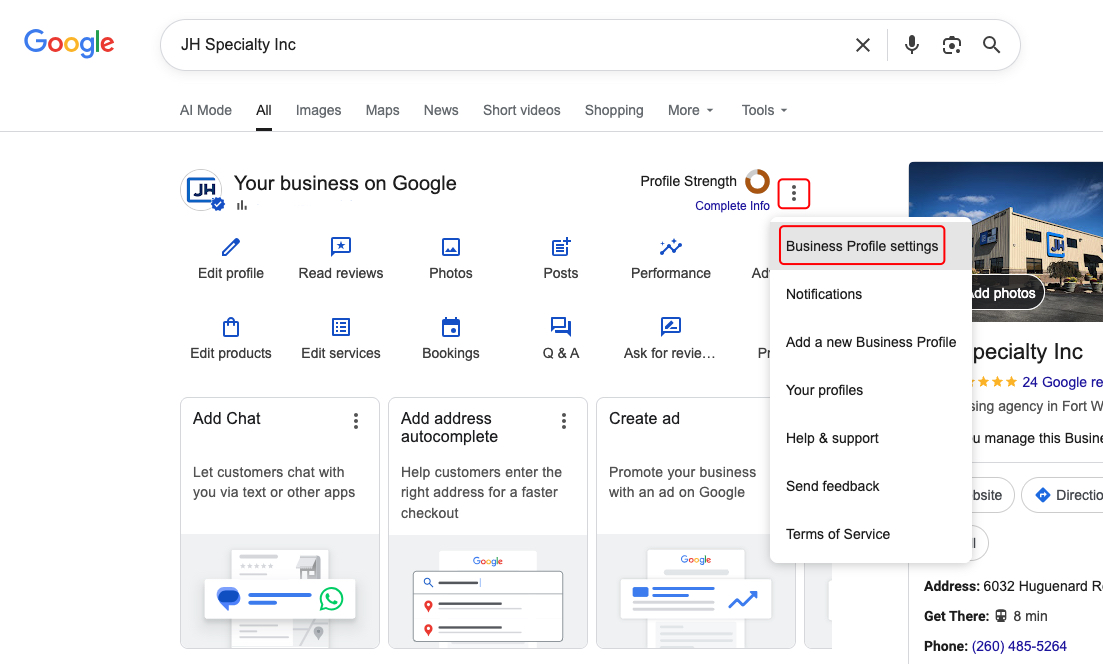
2. Once your Business Profile appears, click the three vertical dots in the top-right corner and select “Business Profile settings.”
3. Choose “People and access.”
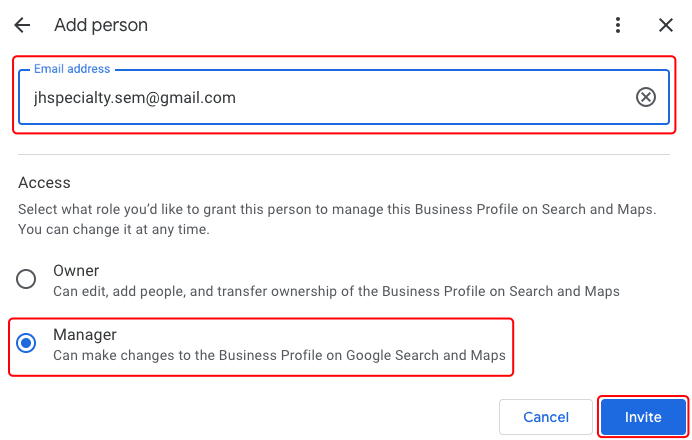
4. Click “Add,” enter our email address, jhspecialty.sem@gmail.com, select “Manager” as the role, and then click “Invite.”